

How to Set the Time on a G-Shock: Digital, Analog-Digital, Solar and Radio Models
Why trust this guide? It's written by the Watch Direct team, an authorised Australian watch retailer trading since 2011. Every button sequence below is taken from an official Casio operation guide, and we link each one so you can check it yourself.
Button steps vary between modules, even on watches that look alike. Always check the module number on your caseback and follow Casio's manual for that number.
At a Glance
- Find your module number first. It's the four-digit number on the caseback, and it tells you which Casio manual to use.
- Digital models: on module 3525, for example, press A, then use C to move between settings and B to change them.
- Analog-digital models: on module 5611, for example, hold A until the city code appears, then set Home City, DST and the time.
- Bluetooth models: pair with the CASIO WATCHES app and the time sets itself.
- In Australia, radio-controlled models generally need setting by hand, and Brisbane, Darwin and Perth need daylight saving turned off.
In This Guide
G-Shocks look simple, but the buttons that set the time change from one model to the next. Press the wrong one and you'll just cycle through the stopwatch and alarm. The reliable way to get it right is to find your watch's module number and follow Casio's own instructions for it. Below, we cover the most common G-Shock types, with steps checked against the official manuals. For other Casio watches, see our guide to setting the time on a Casio watch.
Step 1: Find your module number
Turn the watch over and look for a four-digit number stamped on the caseback, usually inside a small rectangle. That's the module number, and it identifies the movement and its button layout. Casio lists its operation guides by module number, not model name, so this number is the reliable way to find the right manual. Search for it on Casio's official support website and open the English guide.
The steps in each section below come from one specific Casio module, named and linked in that section. If your caseback shows a different number, your buttons may differ, so follow your own manual.
Casio's manuals refer to buttons by letter (A, B, C, D and so on). The diagram at the front of each manual shows where each lettered button sits on your watch. Look at it before you start, because the letters aren't printed on most cases.
Digital G-Shocks
All-digital G-Shocks, like the classic square 5600 shape, show the time on an LCD only. These steps are from Casio's Operation Guide 3525, an all-digital module with no home city or daylight saving setting, so you set the local time directly.

- In Timekeeping Mode, press A (a press, not a hold). The seconds start flashing.
- Press C to move through the settings in this order: seconds, hour, minute, year, month, day.
- While the seconds are flashing, press B to reset them to 00. If the seconds were between 30 and 59, a minute is added.
- For any other setting, press B to increase the number. Hold B to scroll quickly.
- To switch between 12-hour and 24-hour time, press D while any digits are flashing.
- Press A to return to Timekeeping Mode. The day of the week sets itself from the date.

If you leave the watch untouched for a few minutes while digits are flashing, it returns to Timekeeping Mode automatically. Press D at any time to light the display. Source: Casio Operation Guide 3525.
Analog-digital G-Shocks
Analog-digital G-Shocks have hands as well as a digital display. These steps are from Casio's Operation Guide 5611. On this module the hands follow your Home City time, so you set the Home City and daylight saving first, then the time.

- In Timekeeping Mode, hold A until the flashing SET indicator disappears and the current city code appears.
- Use D (+) and B (–) to choose your Home City code. See the Australian city table below.
- Press C to reach the DST setting, then press D or B to switch daylight saving ON or OFF.
- Keep pressing C to move through 12/24-hour format, seconds, hour, minute, year, month and day. Press D to reset the seconds; use D and B to change the other settings.
- Press A to return to Timekeeping Mode.

Daylight saving can't be switched while UTC is selected as the Home City. If the hands don't match the digital time after a knock or exposure to magnetism, hold A for at least five seconds until SUB flashes, then follow the "Adjusting Hand Positions" steps in the manual. Press B to light the display. Source: Casio Operation Guide 5611.
Bluetooth and solar G-Shocks
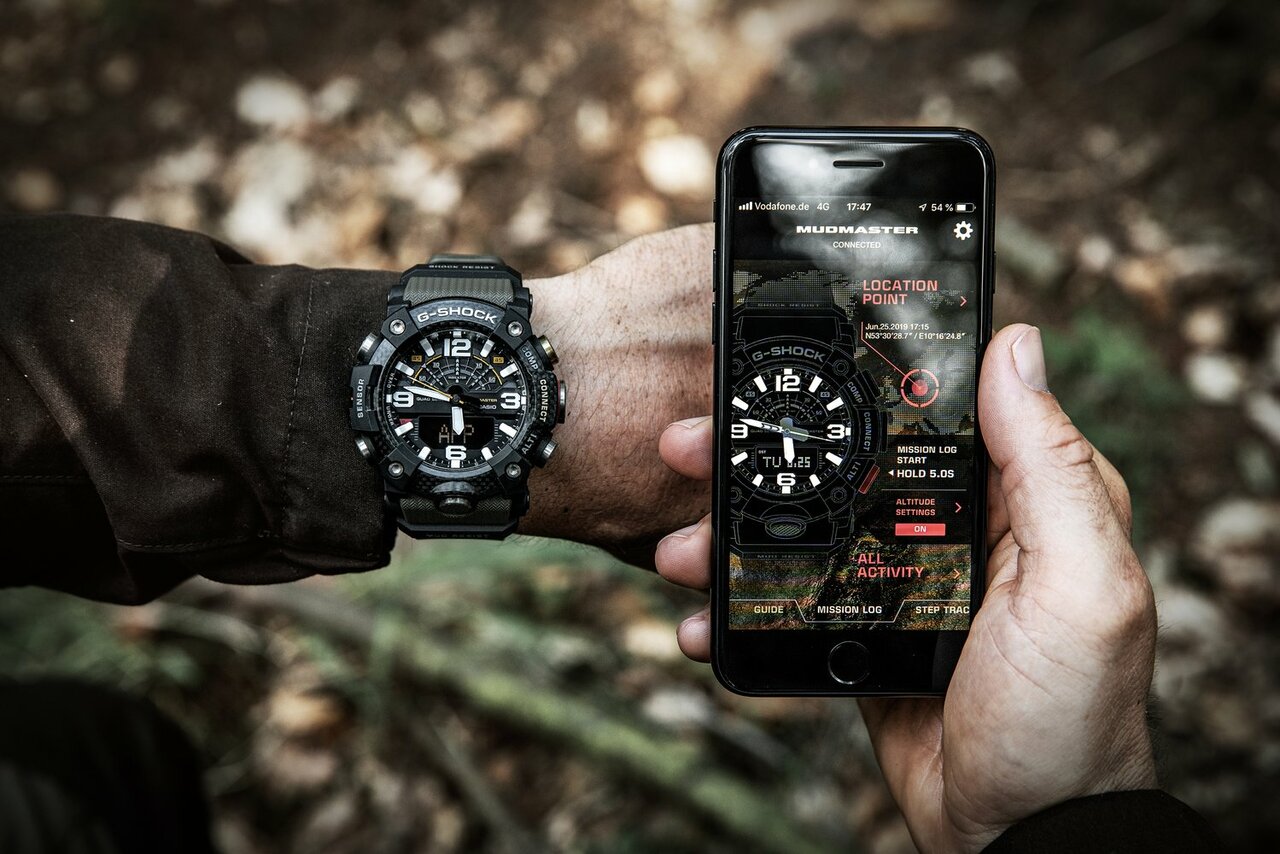
Bluetooth G-Shocks connect to Casio's CASIO WATCHES app and set their own time once paired. These steps are from Casio's Watch Operation Guide 5689, a Tough Solar Bluetooth module. Other Bluetooth modules may use different buttons, so check the manual for your module number.
Set the time with the app
- Install Casio's CASIO WATCHES app from the App Store or Google Play, and turn on Bluetooth.
- Keep your phone within about a metre of the watch. In the app, open the "My Watch" tab and choose your model.
- On the watch, hold C for at least three seconds until CNCT starts flashing, then follow the prompts on your phone. CNCT stops flashing when the watch is paired.

After pairing, the watch connects and adjusts its time four times a day, as long as the app is running on your phone. Allow the app to use location in the background when it asks.
Set the time manually
- In Timekeeping Mode, hold A for at least two seconds and release it when the Home City name appears.
- Use B and D to choose your Home City, then press C.
- Press D to choose a summer time setting: AUTO, OFF or ON. AUTO is the factory setting.
- Keep pressing C to reach seconds, hours, minutes, year, month, day and 12/24-hour format. Press D to reset the seconds; use B and D to change the other settings.
- Press A to finish.

The manual's summer time table includes Sydney and Adelaide, so AUTO handles daylight saving for those cities. Press B to light the face and display. Source: Casio Watch Operation Guide 5689.
Radio-controlled G-Shocks
Radio-controlled G-Shocks (many are labelled "Multi Band 6") set themselves by receiving a time signal. Casio's manuals list the transmitters: two in Japan, plus China, the United States, the United Kingdom and Germany. In the city table of a radio-controlled module such as 3495, cities where reception is possible are marked with an asterisk, and Sydney and Adelaide aren't marked.
The manual also notes that the AUTO summer time setting only works when your Home City is in a time signal reception area. So in Australia, set the time and daylight saving manually, using the "Using Watch Operations to Adjust the Time Setting" section of your manual. Source: Casio Operation Guide 3495.

Australian time zones and daylight saving
Most G-Shocks list Sydney (SYD) and Adelaide (ADL), but not every Australian city. Use a city in the same time zone and set daylight saving to suit. NSW, the ACT, Victoria, Tasmania and South Australia observe daylight saving from the first Sunday in October to the first Sunday in April. Queensland, the Northern Territory and Western Australia don't.
Sydney, Melbourne, Canberra, Hobart
City code to choose: SYD · Daylight saving: ON in summer (or AUTO if your model has it)
Brisbane
City code to choose: SYD · Daylight saving: OFF all year
Adelaide
City code to choose: ADL · Daylight saving: ON in summer (or AUTO if your model has it)
Darwin
City code to choose: ADL · Daylight saving: OFF all year
Perth
City code to choose: A UTC+8 city, such as HKG (Hong Kong) · Daylight saving: OFF all year
| Where you are | City code to choose | Daylight saving |
|---|---|---|
| Sydney, Melbourne, Canberra, Hobart | SYD | ON in summer (or AUTO if your model has it) |
| Brisbane | SYD | OFF all year |
| Adelaide | ADL | ON in summer (or AUTO if your model has it) |
| Darwin | ADL | OFF all year |
| Perth | A UTC+8 city, such as HKG (Hong Kong) | OFF all year |
On models without AUTO, remember to switch DST on in October and off in April. City codes differ slightly between modules, so check the city table at the back of your manual.
G-Shocks by type
One example of each type. To set the time on any of them, find the module number on the caseback and open Casio's official manual for that number.

G-Shock · Digital · 200m
G-Shock DW5600UE-1D
The classic square all-digital G-Shock, with a bright LED Super Illuminator backlight.
- Water resistance: 200m
- Battery: Approx. 5 years (CR2016)
- Display: Digital, 12/24-hour

G-Shock · Analog-digital · 200m
G-Shock GA2100-1A1 "CasiOak"
The slim octagonal G-Shock, with analog hands, a digital display and world time for 48 cities.
- Water resistance: 200m
- World time: 31 time zones (48 cities + UTC)
- Light: Double LED

G-Shock · Tough Solar · Bluetooth
G-Shock GAB2100-1A1
The CasiOak shape with Tough Solar power and Smartphone Link, so the time sets itself from the CASIO WATCHES app.
- Power: Tough Solar
- Connectivity: Bluetooth, CASIO WATCHES app
- Water resistance: 200m
Explore G-Shock and Casio
Frequently asked questions
How do I find my G-Shock module number?
Turn the watch over. The module number is a four-digit number stamped on the caseback, usually inside a small rectangle. Casio's operation guides are listed by module number, so it's the quickest way to find the right instructions for your exact watch.
Why does my G-Shock change between modes instead of setting the time?
You're probably pressing the wrong button or not holding it long enough. On many G-Shocks one button only changes modes, while time setting starts by pressing or holding a different button. For example, Casio's Operation Guide 3525 starts time setting with a press of A, while Operation Guide 5611 needs A held down until the city code appears. Check the manual for the module number on your caseback.
How do I set my G-Shock to Brisbane, Perth or Darwin time?
Many G-Shocks don't list every Australian city. Choose a city in the same time zone and turn daylight saving off: Sydney (SYD) for Brisbane, Adelaide (ADL) for Darwin, and a UTC+8 city such as Hong Kong (HKG) for Perth. Check the city table in your module's manual first.
Does a G-Shock change for daylight saving automatically?
Only some do. Some Bluetooth modules, such as the one covered by Casio's Watch Operation Guide 5689, have an AUTO summer time setting, and the watch also corrects itself when it connects to the CASIO WATCHES app. Many other models need you to switch DST on or off yourself when daylight saving starts and ends.
Will a radio-controlled G-Shock set itself in Australia?
Usually not. Casio's manuals list time signal transmitters in Japan, China, the United States, the United Kingdom and Germany, and Sydney and Adelaide aren't marked as reception cities. In Australia, set these models manually using the steps in your manual.
Why are the hands on my analog-digital G-Shock showing the wrong time?
Strong magnetism or a hard knock can push the hands out of line with the digital time. Most analog-digital models have a hand adjustment mode. In Casio's Operation Guide 5611, for example, you hold A for at least five seconds until SUB flashes, then follow the 'Adjusting Hand Positions' steps. Check the manual for your own module number.
Authorised Retailer
Why buy your watch from Watch Direct?
We've been an authorised Australian watch retailer since 2011. Every watch comes with the manufacturer's warranty, free standard shipping Australia-wide and 30-day returns.
Shop G-Shock → Shop Casio → Shop Digital Watches →